Follow these steps to invite me to your Shopify store. It only takes a few minutes.
Step 1 — Find Your Collaborator Code
Before I can send an access request, I need a 4-digit code from your store. Here's where to find it:
- Desktop: Settings → Users → Security → Collaborators section
- Mobile: Settings → Security → Collaborators section
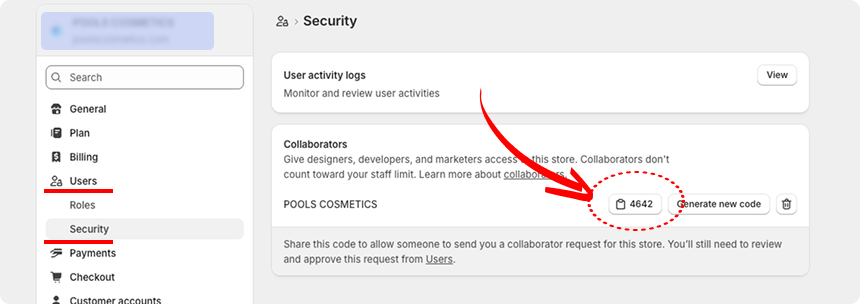
Copy that code and send it to me so I can submit my request.
Step 2 — Find Your Store URL
I also need your Shopify store URL. You can find it in two ways:
- Look at the address bar in your Shopify admin — e.g.
https://admin.shopify.com/store/your-store-name - Your myShopify domain — e.g.
your-store-name.myshopify.com
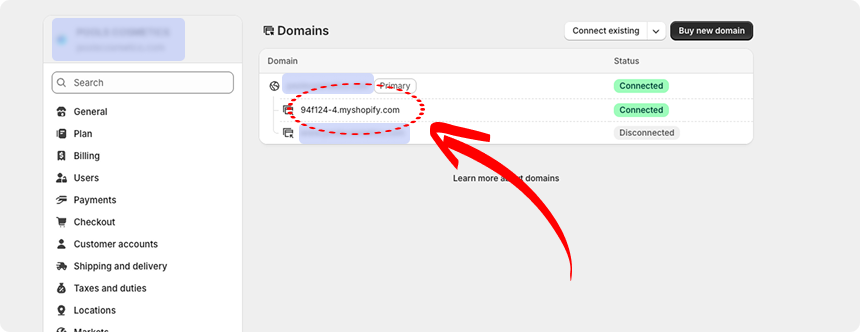
Either one works — just share whichever is easier to find.
Step 3 — Approve My Access Request
Once I have your code and URL, I'll send the request. You'll see my name Luis Dev Studio appear under Settings → Users.
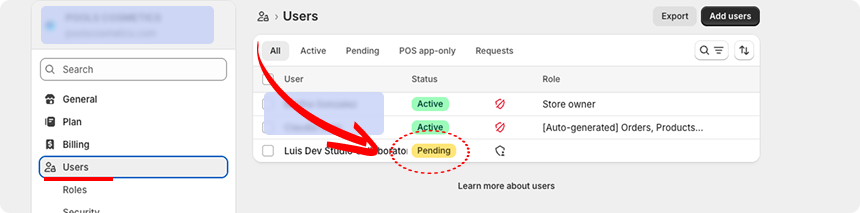
Desktop
Click on my name, then click Approve.
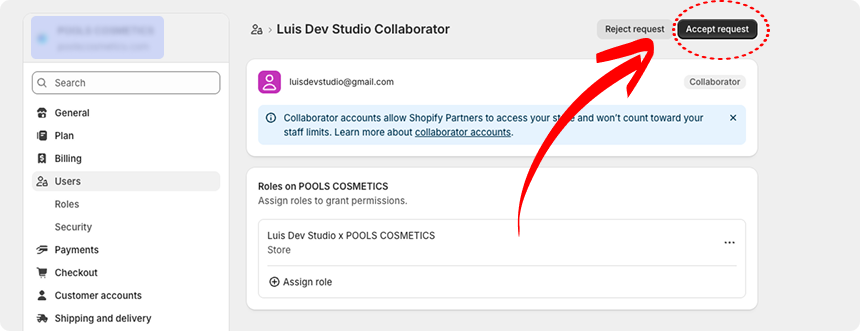
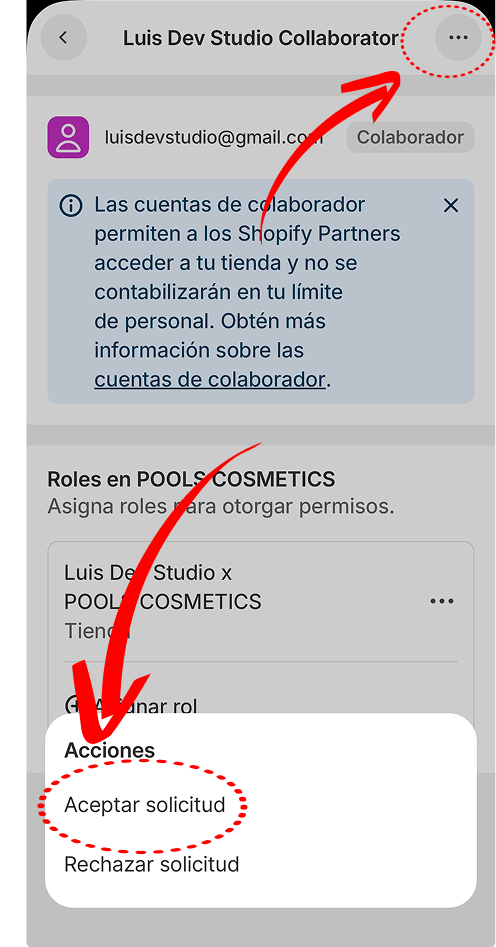
Mobile
Tap the 3 dots next to my name, then tap Approve.
That's it! Once approved, I'll have access to your store and can get started right away. Reach out if you run into any issues.